

You moved a class in Timetable Maker, but your calendar still shows the old time. Start by checking where the change has stopped: the saved timetable, the calendar subscription or the calendar app on your device.
Check the saved timetable first
Open your timetable's view link and reload the page. Can you see the changed event there?
If it still shows the old details, return to your edit link, make the change and use the update control. Wait for confirmation before checking the view page again. Changes made in the editor need to be saved before a calendar can receive them.
If the view page is correct, continue with the subscription checks below.
Did you subscribe or import a file?
Importing an .ics file copies events as they were at that moment. A subscription keeps a connection to the online calendar so it can fetch later changes. Microsoft's guide to importing and subscribing explains this distinction.
Find the email containing your Timetable Maker links. Use Subscribe with your calendar or Add to Google Calendar. The View or Share link opens the timetable as a web page; it isn't the calendar feed.
If you manage the timetable through your account, its view page also has a Links section with iCalendar and Google Calendar options.
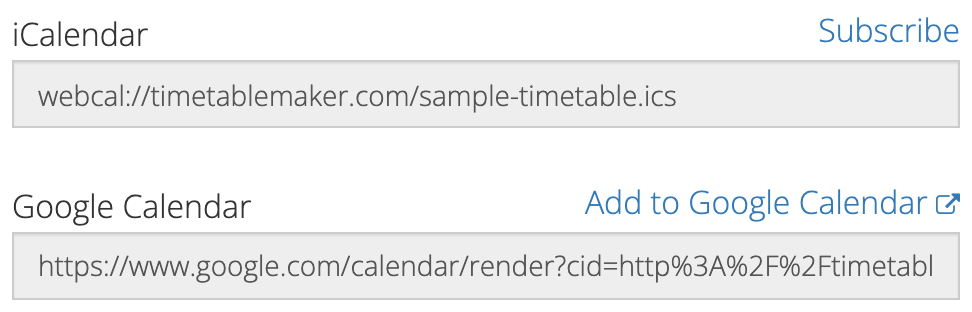
For Google Calendar, add the subscription using a computer browser. Google's instructions for adding a calendar by URL explain where to find that option. Downloading and importing the same file again won't turn the original copy into a subscription.
Allow for refresh time
Subscriptions aren't instant. Both cached calendar data and your calendar service's refresh schedule can delay a change. Reloading the timetable's web page doesn't force an external service to fetch the feed.
In Apple Calendar on a Mac, you can choose View > Refresh Calendars. A subscribed calendar also has an Auto-refresh setting under Get Info. See Apple's refresh instructions.
Outlook can take more than a day to refresh a subscription, according to the Microsoft guide above. Avoid repeatedly deleting and adding the calendar while waiting for a recent change.
If only one device looks wrong
Compare the calendar on your phone with the same account in a browser. If the browser has the new event, check that your phone is showing that account and calendar. Google provides a device sync checklist for its Android app.
If the event appears but its time is shifted, check the device and calendar time-zone settings before moving the event again. Google's time-zone guide explains its display settings.
For an imminent class or meeting, check the saved timetable directly. Once you've confirmed the subscription is set up correctly, you can let the calendar catch up without changing the plan again.