How to make a timetable that runs past midnight

Late shifts and rehearsals don’t always end before midnight. Timetable Maker lets you keep the whole activity together by extending the weekly grid into the following morning.

Here’s the detail to watch: the hours after midnight in Monday’s column belong to Tuesday morning. Each column follows the day it begins on.

Try a Monday evening rehearsal

Suppose your rehearsal starts at 11 pm on Monday and finishes at 1 am on Tuesday. Start by opening Timetable Maker and choosing the days you need.

Use the hour selectors above the editor to extend the grid past midnight. The end-hour menu includes early-morning choices after the evening hours. Choose a range that leaves 1 am visible, then check the grid. You’ll set the rehearsal’s own duration when you add it.

Prefer a 24-hour display? Select Use 24-hour clock. This changes how the times look without moving your events.

Now add the rehearsal:

  1. Enter “Rehearsal” in the Event field.
  2. Add the location and any notes you need.
  3. Set the duration to two hours.
  4. Place it at 11 pm in Monday’s column.
  5. Check that the block continues through midnight and finishes at 1 am.

That’s one event, even though it covers parts of two calendar days.

Rehearsal event displaying a time span of 11 pm to 1 am.
One event can run from Monday evening into Tuesday morning.

What if the activity starts after midnight?

Use the early-morning portion of the preceding day’s column. For example, an activity starting at 12:30 am on Tuesday goes below midnight in Monday’s column. Check its displayed time before saving.

This keeps a late evening and the hours immediately after it together, which can be handy when reading a night shift or evening event schedule.

Before you save

Leave enough room in the grid for all your events. Reducing the visible days or hours can remove events outside the range or shorten ones that cross its edge, so take care when changing those settings after you’ve added activities.

Save using the controls below the timetable. If you subscribe through a calendar app, check the first overnight event there too, including its date and time zone. This helps catch date or time-zone differences before you share the schedule.


How to give your timetable a custom link

Sharing your tutoring hours or club schedule? A name like riverside-club-hours is easier to put on a poster, read aloud or add to an email signature than a long address.

Timetable Maker Plus includes custom timetable links for eligible accounts. Your custom link opens the timetable for viewing, so people can check the schedule without being able to edit it.

Pick a name you can keep

Choose something short that your audience will recognize. A club or activity name usually lasts longer than a name tied to a particular month. You can update the timetable without choosing a new address each time.

The custom name can contain letters, numbers and hyphens, and it must be available. Enter just the name in the field. The address prefix is already shown beside it.

Create your link

  1. Sign in to the account that owns the timetable.
  2. Open that timetable’s view page while signed in.
  3. Find Customize and the Custom URL field.
  4. Enter your chosen name and select Save.
  5. Once it has saved, copy the complete Custom link from the Links section.
Custom URL field containing riverside-club-hours after the timetable.host prefix, with a Save button.
Enter only your chosen name after the address prefix, then save. This is an example name.

Name already taken? Try adding your club’s location or the activity. If you don’t see the controls, check that you’re signed in as the owner and that your account includes the feature.

Give it a quick check

Open the copied link in a separate browser window. Check the title, dates and events, and make sure you copied the viewing link rather than an edit link. You can then add it to your website, email signature or bulletin board.

You can keep using that address as you update the timetable, as long as you keep the custom name and your account remains eligible for the feature. If you rename it, update the places where you shared the old address. The old link may not redirect visitors to the new one.

One thing to remember: a memorable address can also be easy to guess. Use a custom link for a timetable you intend to share, and leave sensitive details out of its events and notes.

Why your weekly plan keeps running out of time

You planned a sensible day. Finish the assignment, answer a few messages, then leave for your afternoon appointment. By lunch, the assignment is still open and everything else has moved back.

Was there too much in the plan? Sometimes the problem starts with what we count as part of a task. “Finish the assignment” can also mean finding your notes, checking an instruction and fixing the part that didn't work the first time.

Count the whole job

Take a weekly report. You remember spending 50 minutes writing it, so you reserve 50 minutes next week. But checking the figures and sending it took another 20 minutes. That part needs room too.

Try writing down three things for a task you do regularly:

What you expected What happened What to allow next time
50 minutes to write the report 50 minutes writing, 20 minutes checking and sending About 70 minutes for the whole job
An hour to study after class Got home and found the materials with 40 minutes left Time to get home and set up before studying
A quick call before leaving The call ran into travel time Move the call earlier or choose another opening

You don't need a detailed time log. A few notes can show which parts of the job keep getting left out.

There's a name for the tendency to underestimate how long things will take: the planning fallacy. In research published in 1994, people often focused on how a task would unfold while overlooking relevant past experience. Last week's actual report is worth considering alongside this week's hopeful estimate.

Make room for the day around it

An hour of writing spread across an afternoon isn't the same as an uninterrupted hour. If people regularly need your help while you work, allow for that when deciding what fits before your next appointment.

Leave a gap where your day usually gets squeezed. That might be the trip between classes, setting up equipment or wrapping up a meeting. Base the space on what you usually need rather than adding the same buffer to everything.

And if you finish early, you can leave that space free. Take a break or get ready for the next thing. An empty slot doesn't have to become another commitment.

Put the full task in your timetable

In Timetable Maker, name the session “Draft report and check figures” so the whole job is visible. Give it the time you expect to need, with any extra details in the event notes.

Add regular commitments to the weekly grid and use the dated timeline for one-off appointments. Leave gaps for travel and preparation before filling the remaining time. Once you've received your timetable links, you can use the edit link to adjust the plan.

Start with the task that most often runs over. Getting that estimate closer to reality may make the rest of the day easier to arrange.

How to return to an unfinished timetable

Started planning your week, but still waiting for a class time or appointment? You may be able to pick up where you left off. Timetable Maker can keep an unfinished new timetable in your browser.

Open it in the same browser

Return to Timetable Maker on the same device, using the same browser and browser profile. If a usable draft is available, it will appear automatically on the creation page.

Check the events, title, days and hours before carrying on. If the browser closed unexpectedly, the draft might be missing your latest changes. There isn’t a list of older drafts to choose from.

If your draft doesn’t appear, check these first:

  • Are you on the same device? A draft started on your laptop won’t appear on your phone.
  • Are you using the same browser profile? Another profile has its own browser storage.
  • Was site data cleared, or were you browsing privately? Either can affect whether the draft is still available.

Save a first version when you can

You don’t have to finish every detail before saving. If you’re creating a timetable without an account, enter your email address in the form below the timetable and request your links. Wait for confirmation and keep the email so you can return later.

Email field with Print and Receive buttons below the timetable.
Enter your email and choose Receive to request your timetable links.

Use the edit link for your own changes, and the view link when sharing with others. Keep the edit link to yourself. Once you have those links, returning to your timetable no longer depends on a draft staying in one browser.

Already editing a saved timetable?

Browser draft recovery applies to creating a new timetable. When you’re changing an existing timetable through its edit link, use the page’s update control and check that it worked before closing the page.

If saving fails, leave the page open while you read the message and check your connection. Avoid clearing browser data as a first troubleshooting step, since that can remove a local draft.

The draft can help when you have to step away. Saving a first version gives you a more dependable way to come back and finish your week.

Three questions to ask before planning next week

Before you copy this week's timetable into next week, take a look at what happened. Some parts may have worked well. Others might need a different time, a clearer task or less room in your schedule.

Bring your timetable and any notes you've made. A few minutes is enough to start with these three questions.

1. What went well?

Look for something concrete: you attended two practice sessions, finished an introduction or made it to an appointment without rushing.

Keep the parts of the plan that helped. If studying after lunch worked, you don't need to move it just because you're making a new plan. An unfinished task can count as progress too. Write down where you got to so you know what comes next.

2. What kept getting in the way?

Suppose you planned to work on an assignment on Monday, Wednesday and Thursday evenings. You managed Monday, but missed the other two.

Looking at the timetable, you notice that the Wednesday and Thursday sessions both followed late shifts. Monday was a lighter day. That gives you something to work with: the evening slot may fit one day better than the others.

Other patterns might be less obvious until you write them down. Perhaps you keep arriving home too late for a session, or spend the first half deciding what to do. Focus on the problem that comes up repeatedly.

3. What will you change?

Choose one change you can try next week. For the assignment example, your review might look like this:

Keep Change Prepare
Monday evening study session Move Wednesday's session to a free afternoon Choose the practice questions beforehand

You can also remove something that no longer matters. There's no need to carry a task into another week just because it appeared on the last timetable.

Writing down progress has some research behind it. A review of 138 experiments found that encouraging people to monitor progress improved goal achievement on average, with larger effects when progress was recorded. Those studies covered many different approaches. The three questions here are a simple way to try reviewing your own plan.

Make the change while the week is fresh

Open your Timetable Maker edit link and move the session you've chosen to change. Give it a specific name and add a next step in the notes, such as “write the first two paragraphs using Tuesday's outline”.

Keep regular sessions in the weekly grid and put dated deadlines or appointments on the timeline. If you prefer reviewing on paper, print your timetable and make notes on it during the week. Timetable Maker doesn't track completed work automatically, so those notes are your record of what happened.

Save your changes when you're done. Next week, you can look back and see whether the new arrangement helped.

Why hasn’t my timetable updated in my calendar?

You moved a class in Timetable Maker, but your calendar still shows the old time. Start by checking where the change has stopped: the saved timetable, the calendar subscription or the calendar app on your device.

Check the saved timetable first

Open your timetable's view link and reload the page. Can you see the changed event there?

If it still shows the old details, return to your edit link, make the change and use the update control. Wait for confirmation before checking the view page again. Changes made in the editor need to be saved before a calendar can receive them.

If the view page is correct, continue with the subscription checks below.

Did you subscribe or import a file?

Importing an .ics file copies events as they were at that moment. A subscription keeps a connection to the online calendar so it can fetch later changes. Microsoft's guide to importing and subscribing explains this distinction.

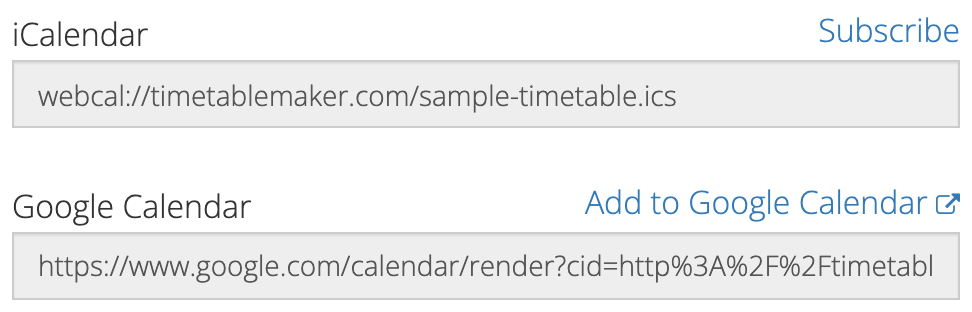
Find the email containing your Timetable Maker links. Use Subscribe with your calendar or Add to Google Calendar. The View or Share link opens the timetable as a web page; it isn't the calendar feed.

If you manage the timetable through your account, its view page also has a Links section with iCalendar and Google Calendar options.

iCalendar Subscribe and Add to Google Calendar options in the timetable owner’s Links panel.
Calendar options in the owner’s Links panel. The addresses shown are examples.

For Google Calendar, add the subscription using a computer browser. Google's instructions for adding a calendar by URL explain where to find that option. Downloading and importing the same file again won't turn the original copy into a subscription.

Allow for refresh time

Subscriptions aren't instant. Both cached calendar data and your calendar service's refresh schedule can delay a change. Reloading the timetable's web page doesn't force an external service to fetch the feed.

In Apple Calendar on a Mac, you can choose View > Refresh Calendars. A subscribed calendar also has an Auto-refresh setting under Get Info. See Apple's refresh instructions.

Outlook can take more than a day to refresh a subscription, according to the Microsoft guide above. Avoid repeatedly deleting and adding the calendar while waiting for a recent change.

If only one device looks wrong

Compare the calendar on your phone with the same account in a browser. If the browser has the new event, check that your phone is showing that account and calendar. Google provides a device sync checklist for its Android app.

If the event appears but its time is shifted, check the device and calendar time-zone settings before moving the event again. Google's time-zone guide explains its display settings.

For an imminent class or meeting, check the saved timetable directly. Once you've confirmed the subscription is set up correctly, you can let the calendar catch up without changing the plan again.

How to plan backwards from a deadline

A deadline tells you when something must be finished. It doesn't tell you when to start the draft, ask for feedback or check that you have everything you need.

Planning backwards helps you find those earlier dates. Start with what you need to hand over, then work back through the steps that make it possible.

Start with the finished result

Suppose you have a short report due in two weeks, on Friday at 3 pm. Before choosing work sessions, check what “finished” includes. You might need the report, a reference list and a PDF uploaded through your course website.

Now ask what needs to happen just before submission. A final check and upload belong there. Before that, you need time to make corrections. Before corrections, you need a draft to read.

That gives you a rough sequence:

When What needs to be ready
Friday, week two Checked PDF uploaded before 3 pm
Thursday, week two Corrections and references finished
Tuesday, week two Full draft ready to review
Friday, week one Outline and supporting material ready
Monday, week one Requirements checked and research started

These are example milestones. A longer report or a project involving other people will need a different amount of time.

Check the steps that depend on someone else

If you want feedback on Tuesday, ask whether the person can read your draft then. Sending it that morning doesn't mean you'll receive comments that afternoon.

The same applies to equipment, materials or a group member's contribution. Make those requests early enough that you can respond if something isn't available. Knowing about a delay while you're planning gives you more choices than discovering it the night before the deadline.

Find room for the work

Milestones show what should be ready. Work sessions give you time to get it there.

Look at the days before each milestone and choose sessions with a clear purpose. “Find three sources” and “Write the first section” are easier to begin than a week full of “Work on report”. Allow time to read, check and revise as well as produce the first draft.

If the sessions don't fit around your existing commitments, adjust the plan now. You may need to start earlier, reduce the scope where allowed or discuss the deadline with the person who set it.

Add the dates to Timetable Maker

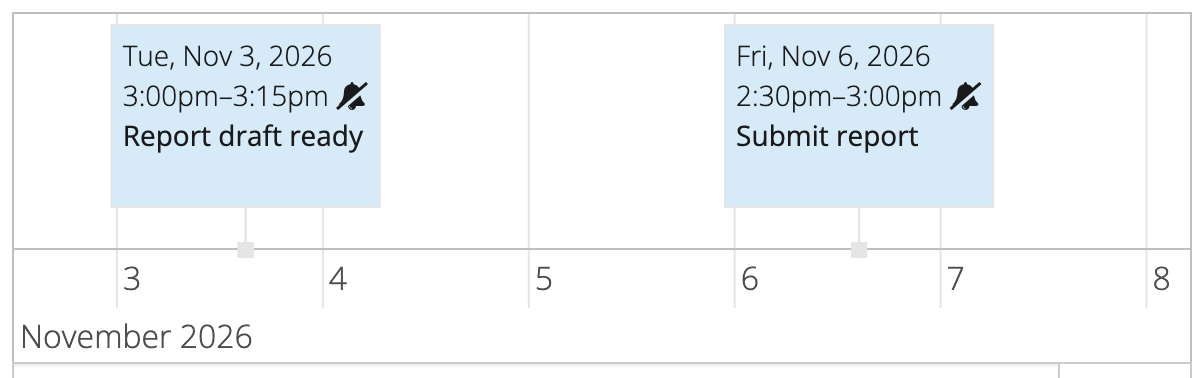
Use the dated timeline in Timetable Maker for your submission deadline and project sessions. Give each one a clear name, such as “Report draft ready” or “Check references”. Put the required format or next action in the notes.

Report draft milestone on November 3 and submission session on November 6 in the dated timeline.
Example dates leave time between finishing the draft and submitting the report.

Keep regular classes and work commitments in the weekly grid. That lets you consider the project alongside the routine it needs to fit around. You can follow the guide to planning future events if you haven't used the timeline before.

Save your timetable and keep the edit link. As the work progresses, update the remaining sessions so the plan still reflects what needs to be done before Friday.

Make it easier to start the things you keep putting off

“I should practise more” leaves a few decisions for later. When? Where? What should you work on first? When a free moment finally arrives, you still have to work those out.

Try making the start more concrete:

After I clear the dinner dishes on Tuesday, I'll sit at the kitchen table and answer five Spanish practice questions.

Now you have a moment to look for and something to do when it arrives.

From a vague plan to a first step

The same approach can fit quite different activities:

  • Study: After Wednesday's lecture, go to the library and try the first practice problem before opening the solutions.
  • Music: After getting home on Thursday, take out the guitar and work through the difficult bars of one song.
  • A personal project: After breakfast on Saturday, open the draft and write the opening paragraph.

Choose something you already want to do. Then decide what will signal the start, where you'll be and what you'll do first. “When things calm down” is hard to act on. “After my Wednesday lecture” gives you a clearer opportunity.

Psychologists call this an implementation intention: a plan that connects a situation with an action. Research by Gollwitzer and Brandstätter in 1997 found that making these plans helped people follow through in the situations studied. It gives us a useful approach to try, though a plan still needs time and workable circumstances.

Give that first step some room

A starting cue and a time slot can work together. You might reserve 4:00 to 4:30 for guitar practice because that's when you're usually home, then use putting away your bag as the cue to take out the guitar.

Keep the first action small enough to begin on a busy day. Once you've started, you can use the rest of the session for more practice. Having your materials ready helps too. If finding the music takes half the session, leave it with the guitar next time.

If you keep missing the opportunity, look at what happens around it. Maybe the lecture runs late or dinner is rarely finished at the time you expected. Choose a different opening that fits your day.

Keep the starting plan with the session

Add the session to Timetable Maker with a clear name, such as “Spanish practice”. Put the cue and first action in its notes: “After the dishes, sit at the kitchen table and answer five questions.” Add a location if you need one.

Check the commitments on either side before settling on a time. You can print the timetable or use the calendar subscription link you receive when you save it, so the plan is somewhere you'll see it.

After trying it, use your edit link to make any changes. Tuesday evening might turn out to be a poor choice. Moving the session is part of finding a routine you can use.

How to change your timetable with Alpaca

Have a few changes in mind for next week? You can describe them to Alpaca inside Timetable Maker instead of editing each event separately.

The example below adds a pair of study sessions, then moves one of them. You’ll apply an instruction, check the result and save the changes.

Add two sessions with one instruction

Open the timetable editor and find the Prompt field. Enter:

Add a study session every Monday and Wednesday from 6 pm to 7 pm. Call it Biology review and use blue.

Prompt field containing an instruction to add Biology review on Monday and Wednesday from 6 pm to 7 pm.
Describe the days, times and event name in the Prompt field. Your remaining allowance may differ.

Select Apply and wait for the result. The editor shows your remaining allowance, which determines whether you can apply another prompt.

Take a look at the two events. Are they on Monday and Wednesday, from 6 pm to 7 pm? Check their names, colour and reminders too. If a message says no changes were applied, read it before trying again.

Adjust the plan

Suppose Wednesday’s session would work better a little earlier. You could write:

Move Wednesday’s Biology review to 5 pm. Keep its duration, notes and reminder unchanged.

Naming the event and the day helps Alpaca identify what you want to change. For an event on the dated timeline, include its date as well. It’s also helpful to say which details you want to keep.

After applying the instruction, check Wednesday’s session again. You can always make a small correction with the ordinary editing controls if that’s quicker.

Undo a change you don’t want

If the result isn’t what you meant, select Undo before making further changes. While available, it restores the editor to how it was before Alpaca made that change.

Further edits or saving can make Undo unavailable. It doesn’t keep a history of every version, so this is the time to use it. You can then try a more specific instruction.

Save when you’re ready

Give the updated timetable a final look, including event durations and reminders. For dated events, check the date as well as the time.

Apply changes the timetable in the editor; saving is a separate step. Use the usual save or update controls to keep your changes. Applying a prompt doesn’t send email or share the timetable.

You can use prompts and the regular controls together, choosing whichever is easier for the change you want to make.

Where to put breaks in a busy timetable

A gap on a timetable can disappear surprisingly quickly. The meeting runs late, you answer a message and suddenly the next session has started. You had time for a break on paper, but never got one.

It helps to look at what surrounds the gap. Here are three ways to make room for a pause, depending on the kind of day you're planning.

Between meetings or classes

First, account for the transition. Walking to another building, packing up or getting ready for the next call takes time. A ten-minute gap might be entirely taken up by those things.

Where you control the timing, leave room for both the transition and a pause. For example, a meeting ending at 10:45 might need five minutes of follow-up before you can step away until 11. If the meetings are fixed, look for a more usable opening elsewhere in the day.

During a long study session

You might prefer a timer, or you might pause after finishing a section or a set of practice questions. Choose a stopping point you can recognize, so “I'll take a break soon” doesn't keep moving further away.

Try stepping away from the material for a few minutes. Get a drink, look outside or do something else that gives you a pause from the task. If your chosen interval keeps interrupting a useful stretch of work, adjust it. The timetable is there to help you arrange the session.

Before the evening disappears into work

Sometimes the missing break is at the end of a work session. There's always one more thing you could finish.

Give the session an end time and leave some space after it. If there's work left, note where you'll pick it up. That can help you decide what belongs in the next session without trying to finish everything tonight.

What the research says about short breaks

A 2022 review in PLOS ONE found small improvements in energy and fatigue from short breaks. It didn't find a statistically significant improvement in overall performance. The results don't establish a single best interval for every task.

That leaves room to try a routine that suits your day and notice how you feel when you return. A pause can be worthwhile even when it doesn't help you get more done.

Show the space in Timetable Maker

In Timetable Maker, you can leave gaps between weekly events or add a break as its own event if you'd like it to stand out. Allow for travel and preparation separately so the break doesn't get used up before it begins.

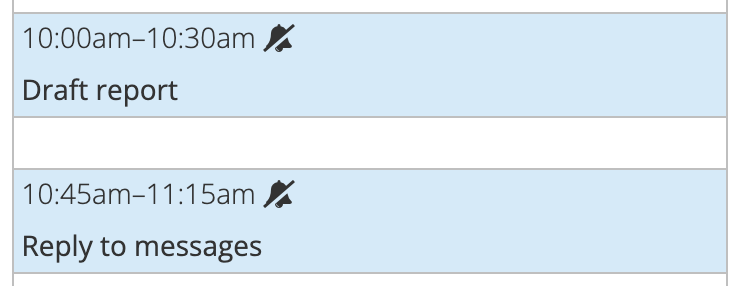
A blank fifteen-minute gap between Draft report ending at 10:30 am and Reply to messages starting at 10:45 am.
A gap can stay empty. Here, the next session starts fifteen minutes after the first one ends.

Print the timetable to keep it in view. If you'd prefer an alert, use your timetable's subscription link with a compatible calendar and check how that calendar handles reminders.

You can find more everyday planning suggestions in Take Control of Your Life with Time Management. Start with whichever part of your day has the least breathing room, then adjust the timetable after you've tried it.