Where to put breaks in a busy timetable

A gap on a timetable can disappear surprisingly quickly. The meeting runs late, you answer a message and suddenly the next session has started. You had time for a break on paper, but never got one.

It helps to look at what surrounds the gap. Here are three ways to make room for a pause, depending on the kind of day you're planning.

Between meetings or classes

First, account for the transition. Walking to another building, packing up or getting ready for the next call takes time. A ten-minute gap might be entirely taken up by those things.

Where you control the timing, leave room for both the transition and a pause. For example, a meeting ending at 10:45 might need five minutes of follow-up before you can step away until 11. If the meetings are fixed, look for a more usable opening elsewhere in the day.

During a long study session

You might prefer a timer, or you might pause after finishing a section or a set of practice questions. Choose a stopping point you can recognize, so “I'll take a break soon” doesn't keep moving further away.

Try stepping away from the material for a few minutes. Get a drink, look outside or do something else that gives you a pause from the task. If your chosen interval keeps interrupting a useful stretch of work, adjust it. The timetable is there to help you arrange the session.

Before the evening disappears into work

Sometimes the missing break is at the end of a work session. There's always one more thing you could finish.

Give the session an end time and leave some space after it. If there's work left, note where you'll pick it up. That can help you decide what belongs in the next session without trying to finish everything tonight.

What the research says about short breaks

A 2022 review in PLOS ONE found small improvements in energy and fatigue from short breaks. It didn't find a statistically significant improvement in overall performance. The results don't establish a single best interval for every task.

That leaves room to try a routine that suits your day and notice how you feel when you return. A pause can be worthwhile even when it doesn't help you get more done.

Show the space in Timetable Maker

In Timetable Maker, you can leave gaps between weekly events or add a break as its own event if you'd like it to stand out. Allow for travel and preparation separately so the break doesn't get used up before it begins.
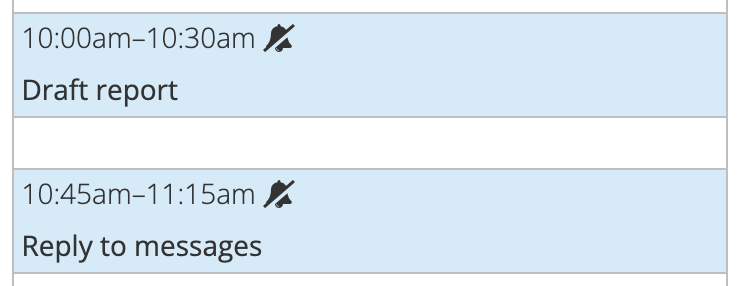
A blank fifteen-minute gap between Draft report ending at 10:30 am and Reply to messages starting at 10:45 am.
A gap can stay empty. Here, the next session starts fifteen minutes after the first one ends.

Print the timetable to keep it in view. If you'd prefer an alert, use your timetable's subscription link with a compatible calendar and check how that calendar handles reminders.

You can find more everyday planning suggestions in Take Control of Your Life with Time Management. Start with whichever part of your day has the least breathing room, then adjust the timetable after you've tried it.

A study timetable that helps you remember

You finish a chapter, look over your notes and feel ready. Then a practice question leaves you staring at the page, unsure how to begin.

A study timetable can make room for that missing step: trying to remember something without the answer in front of you. You don't need to rebuild your whole week. Start with one topic and give yourself a few chances to come back to it.

Try this with one chapter

Suppose you're studying biology and have a chapter to learn this week. Instead of putting one long “Study biology” block on your timetable, try three sessions with different jobs.

Monday: learn the topic. Read the chapter, work through its examples and write a few questions you should be able to answer. Make them specific, such as “What happens at each stage?” or “How are these two processes different?”

Wednesday: see what you remember. Put the notes away and answer your questions. Then check your answers. Mark anything you missed or couldn't explain clearly so you know what to revisit.

Saturday: have another go. Try the difficult questions again, along with a few from an earlier chapter. If you're still stuck, return to the explanation and work through an example before trying again.

Adjust the gaps to suit your exam date and how much you remember. These sessions can be short, but leave enough time to check your answers. Checking the answers helps you catch mistakes before you practise them again.

Why come back to it?

Recognizing an explanation can feel reassuring, but producing the answer yourself asks more of your memory. In a 2008 vocabulary-learning experiment, students remembered more later when they kept practising recall after learning an answer. Extra study of those answers didn't give the same benefit in that experiment.

Spacing the sessions also gives you a chance to find out what's stayed with you. Research on spaced learning found that the useful gap between sessions depended on how far away the final test was. There's no single set of days to follow for every subject and exam.

You can adapt the idea to your course. Try a math problem without following a worked solution. Explain a historical event in your own words. Produce a word in the language you're learning before checking the translation.

Give each session a place in your timetable

Open Timetable Maker and add your fixed classes first. Then find room for the study sessions around them. Names such as “Biology practice questions” and “Check chemistry problems” will remind you what you planned to do when you sit down.

Add the chapter name or the questions you want to revisit to the event's notes. You can also put your exam date on the timeline below the weekly timetable, so it's there alongside your regular routine.

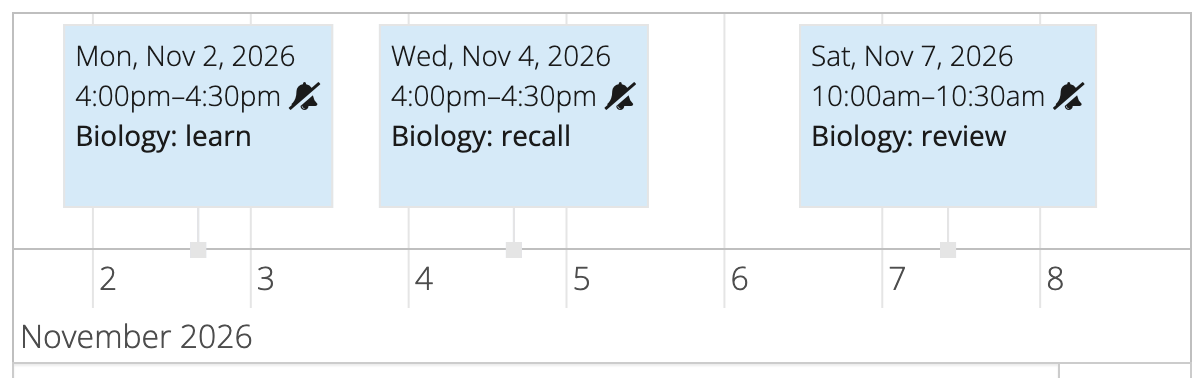
For sessions planned for specific dates, use the timeline too. The example below puts learning, recall and review on separate days in one week.

Biology learning, recall and review sessions on Monday, Wednesday and Saturday in the dated timeline.
A sample week with a different task for each study session. Adjust the days and session lengths to suit your course.

Save the timetable using your email address and keep the edit link. After the first week, adjust any sessions that felt rushed or too ambitious. Let what you remember help you decide what to practise next.

How to share your timetable and keep control of changes

Suppose you run a weekly tutoring group. Students need to see the sessions and room numbers, while you need to adjust the plan when something changes. Timetable Maker gives you different links for these jobs.

The easiest arrangement is to keep your edit link and send students the viewing link. They can check the schedule without opening your editor.

Choose the right link

When you create a timetable using your email address, the message includes these options:

Link in the email What it's for
View or Share Open the timetable in a browser or send it to people who need the schedule.
Update and Print Return to the editor to change or print the timetable. Keep this link for your own use.
Subscribe with your calendar Follow the timetable through a compatible calendar app.
Add to Google Calendar Add the timetable to Google Calendar.

If you manage the timetable through your account, you'll also find viewing and calendar links in the Links section of its view page. The edit link isn't listed in that panel.

View online row with a sample tutoring timetable address in the owner’s Links panel.
The owner’s Links panel labels the viewing address “View online”. This is an example address.

Send students the viewing link

  1. Open the View or Share link from your email.
  2. Check the timetable title, session times, locations and notes.
  3. Copy that link into the message or page where students look for the schedule.
  4. Explain what it covers, such as “Weekly tutoring sessions. Check here for room changes.”

Copying the individual link avoids forwarding the whole email, which also contains your editing access.

Give events clear names and include the room or meeting location where needed. For example, “Biology review” and “Room 12” tell students more than “Session”. Only include details that everyone with the timetable should be able to read.

Keep one timetable up to date

When a room or time changes, open Update and Print, edit the event and save the update. Open the viewing link again to check the result. Students can continue using that same viewing link while the timetable remains available.

If they want the sessions alongside their other appointments, share the calendar subscription link too. Their calendar will pick up saved changes when it refreshes the subscription. For a last-minute change, tell the group directly as well, since calendar updates can take time.

Know what sharing a link allows

Timetable links are unlisted, but anyone who receives a viewing link can pass it on. They're useful for sharing a schedule, not for restricting it to a named list of readers. The calendar feed also contains event information.

Keep the edit link out of group messages and public pages: someone with a working edit link can change the timetable. With the appropriate link shared, Timetable Maker lets you maintain the plan in one place while your group follows it.

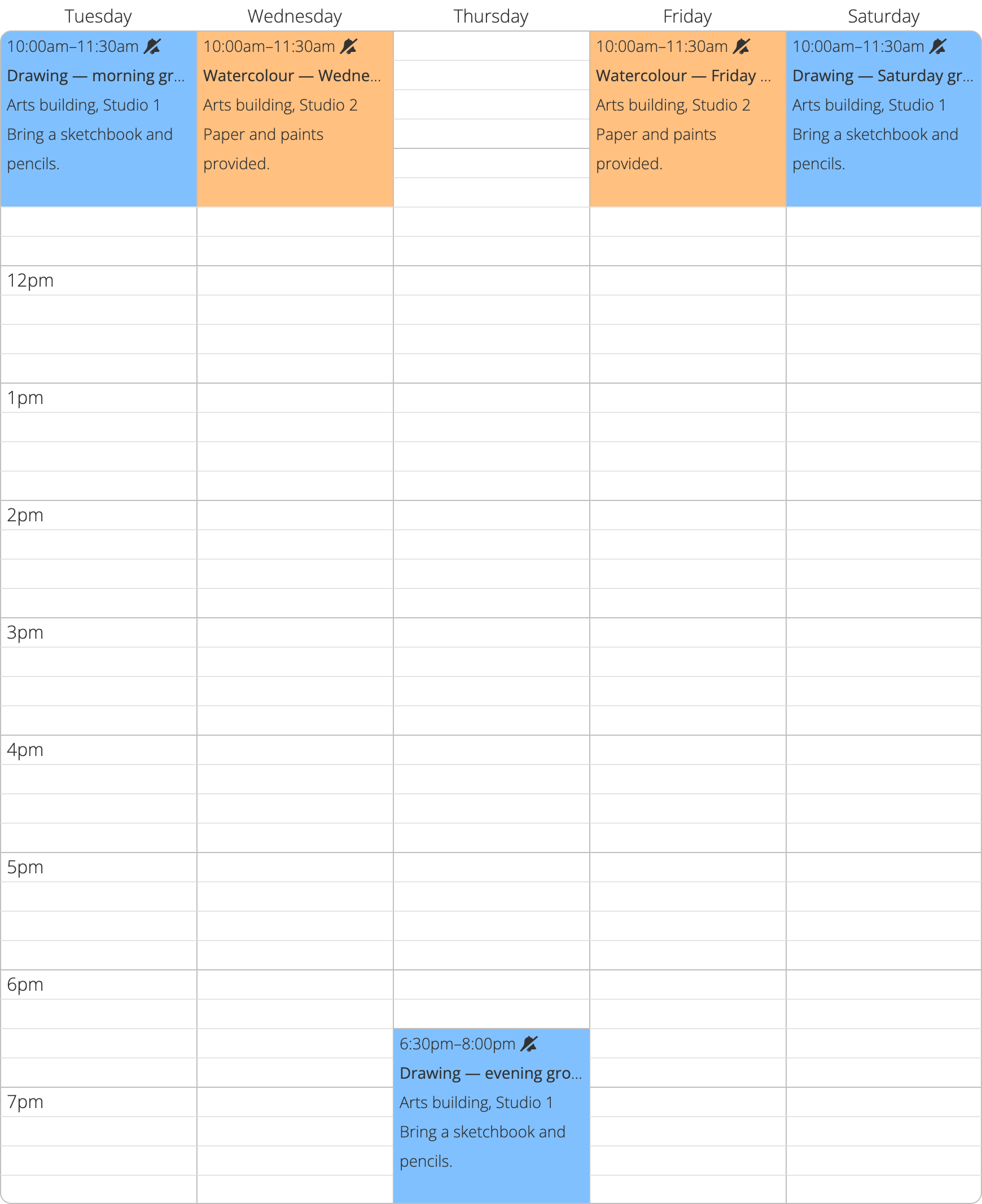
A weekly art-class schedule with the details students need

The class starts at 10, but which room is it in? Should students bring their sketchbooks, or will you provide everything? When you run art classes, the small details matter almost as much as the time.

Imagine an independent teacher running drawing and watercolour groups in a shared arts building. There are morning classes during the week, an evening drawing group and a Saturday session. Students reserve their spots with the teacher, then receive a timetable they can refer to before class.

Put the useful details beside the class

Add the regular sessions in Timetable Maker, using the event name for the activity and the location field for the room. A short note can cover what to bring: “Bring a sketchbook and pencils” or “Paper and paints provided”.

For this example, drawing meets on Tuesday morning and Thursday evening. Watercolour runs on Wednesday and Friday mornings, with another drawing group on Saturday. Giving drawing and watercolour their own colours makes the pattern easy to spot.

Leave the event names clear enough to stand on their own. Someone looking at a printed copy should still be able to find the right class without remembering what each colour means.

Sample art-class timetable with drawing and watercolour sessions on weekdays and Saturday morning.
Regular classes in one view, with room and materials information attached to each event.

Explore the sample art-class timetable and open a session to read its notes.

Keep a copy in the studio and a link online

Once you have saved the timetable, print it for the studio bulletin board and share the viewing link in your student messages. Keep your edit link so you can return to update a room or change a materials note. Reprint the bulletin board copy when the schedule changes.

A one-off exhibition visit belongs on the dated timeline below the weekly grid. That keeps it separate from classes that repeat each week.

Timetable Maker Plus includes a custom viewing link you can put on a class flyer or your website. Choose a name students will recognize, and you have an easy place to point them when they ask what is happening at the studio.

Before you switch tasks, leave yourself a way back

You need to leave for a meeting, but you're halfway through something. You close the document, promise yourself you'll remember where you were, and go.

Tomorrow, “Continue report” doesn't give you much to work with.

Before you leave, try writing a quick note:

Totals checked through March. Start with April, then ask Sam about the missing invoice. Continue tomorrow morning.

It takes a little more thought now, but gives you a clear place to start later. It may also help you turn your attention to the meeting you're about to join.

Three things to leave yourself

A return note only needs to tell you:

  • Where you stopped.
  • What to do next.
  • When you expect to come back.

For an essay, that could look like this:

The outline is finished. Next, find a source for the second paragraph, then write the example about public transit. Return after Thursday's lecture.

Use your own shorthand. You don't need to summarize everything you've done or write a new project plan. The next step is usually the part you'll be glad to find waiting for you.

If you can choose when to stop, look for a sensible boundary, such as finishing a calculation or a section. If someone needs you right away, even a few words can save you from relying on memory alone.

Why unfinished work follows us around

Sometimes you're in the next meeting but still thinking about the work you left behind. Researcher Sophie Leroy calls this attention residue. In two experiments published in 2009, difficulty letting go of unfinished work affected performance on the next task.

A later study by Leroy and Theresa Glomb explored making a brief plan to return. When people expected to be pressed for time on their return, this preparation helped them leave less attention on the unfinished work and perform better on the interrupting task. The studies examined that next task, rather than testing how well people worked when they eventually returned.

That's a useful reason to try the note before you switch. You can see for yourself whether it makes the transition feel easier.

Put the next step where you'll see it

In Timetable Maker, give the work a place in your weekly schedule and put your return note in the event's notes. “Finish report” becomes much easier to approach when the next action is right there with it.

Notes field with a reminder to write the introduction and add two examples after completing an outline.
Keep the next step in the event’s notes so it is there when you return.

Choose a session that fits between your other commitments. If you keep interrupting yourself to check nonurgent messages, you could give those their own slot too. Agree on response times with anyone who needs to reach you, so you know what can wait.

When your plans change, move the session and update the note. Whether you're returning tomorrow morning or after your next class, leave yourself something more helpful than “pick up where I left off”.